Android Video Frame Rendering: Scaling, Cropping, and Surface Management
Introduction
Video frame cropping occurs when video players need to display only a portion of video frames, or when the original video frame dimensions don’t match the render window dimensions. The Android framework provides several APIs and parameters that allow application developers to control how frames are cropped during playback. This document explains how these mechanisms work in multimedia scenarios.
Crop Rectangle Control
MediaFormat Parameters
Applications can specify which portion of video frames to display by configuring four parameters when setting up a video MediaCodec:
KEY_CROP_BOTTOMKEY_CROP_LEFTKEY_CROP_RIGHTKEY_CROP_TOP
These four parameters define a visible rectangle (inclusive bounds). The following Java code demonstrates how to configure cropping to display only the top-left quarter of frames:
| |
Hardware Support Limitations: These parameters don’t work consistently across all devices, as they require explicit support declaration from C2 HAL implementations. Among FireTV products, MTK chips support these parameters (though they don’t function properly on Hubbell devices during testing), while Amlogic chips don’t support them at all.
SPS-Level Cropping
Video encoding standards like H.264 allow content creators to specify cropping areas within the Sequence Parameter Set (SPS) data. For example, FFmpeg provides a bitstream filter to modify these properties:
| |
The output video 1080_cropped.mp4 maintains its original 1080p resolution, but media players should respect the cropping properties embedded in the SPS during rendering.
Decoder Behavior: When decoding videos with SPS crop properties, C2 decoders trigger an output format change event to notify frameworks and applications once SPS data is successfully parsed. Example debug output:
| |
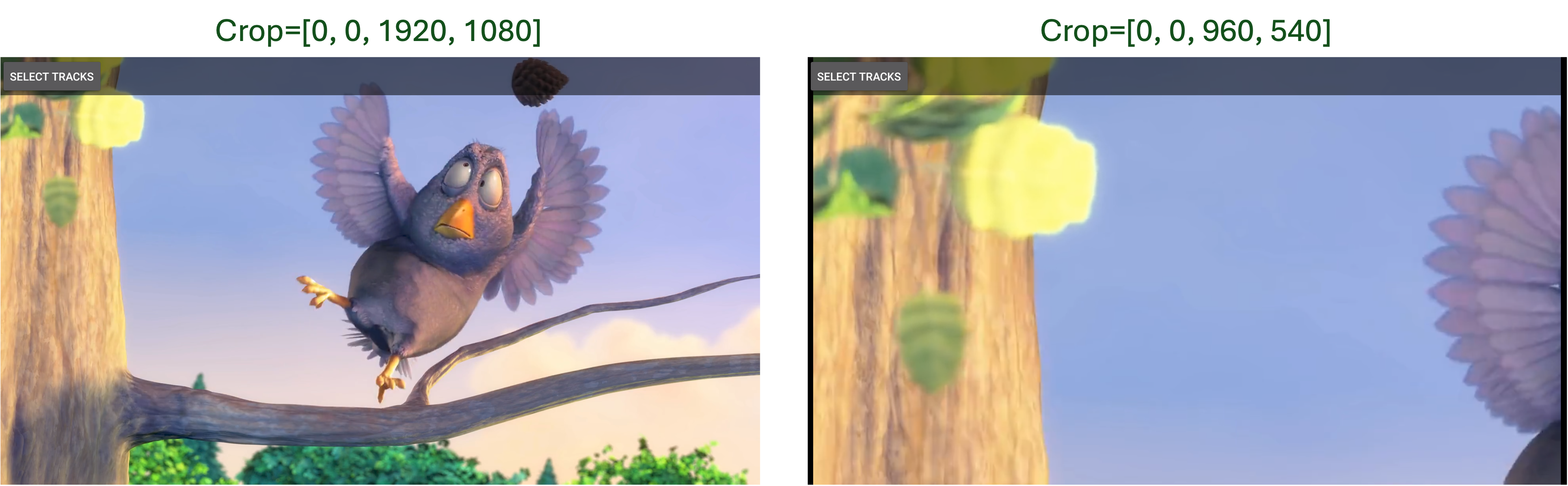
The following image consists of two screenshots taken from two ExoPlayer playback sessions playing the original video and the cropped video, respectively.
Video Scaling Modes
Public API Overview
For video playback scenarios, MediaCodec provides the setVideoScalingMode() API (also available in ExoPlayer) to control how video frames fit within render windows. The API accepts one of two scaling modes:
VIDEO_SCALING_MODE_SCALE_TO_FIT(default)VIDEO_SCALING_MODE_SCALE_TO_FIT_WITH_CROPPING
Scale-to-Fit Mode (Stretch-to-Window)
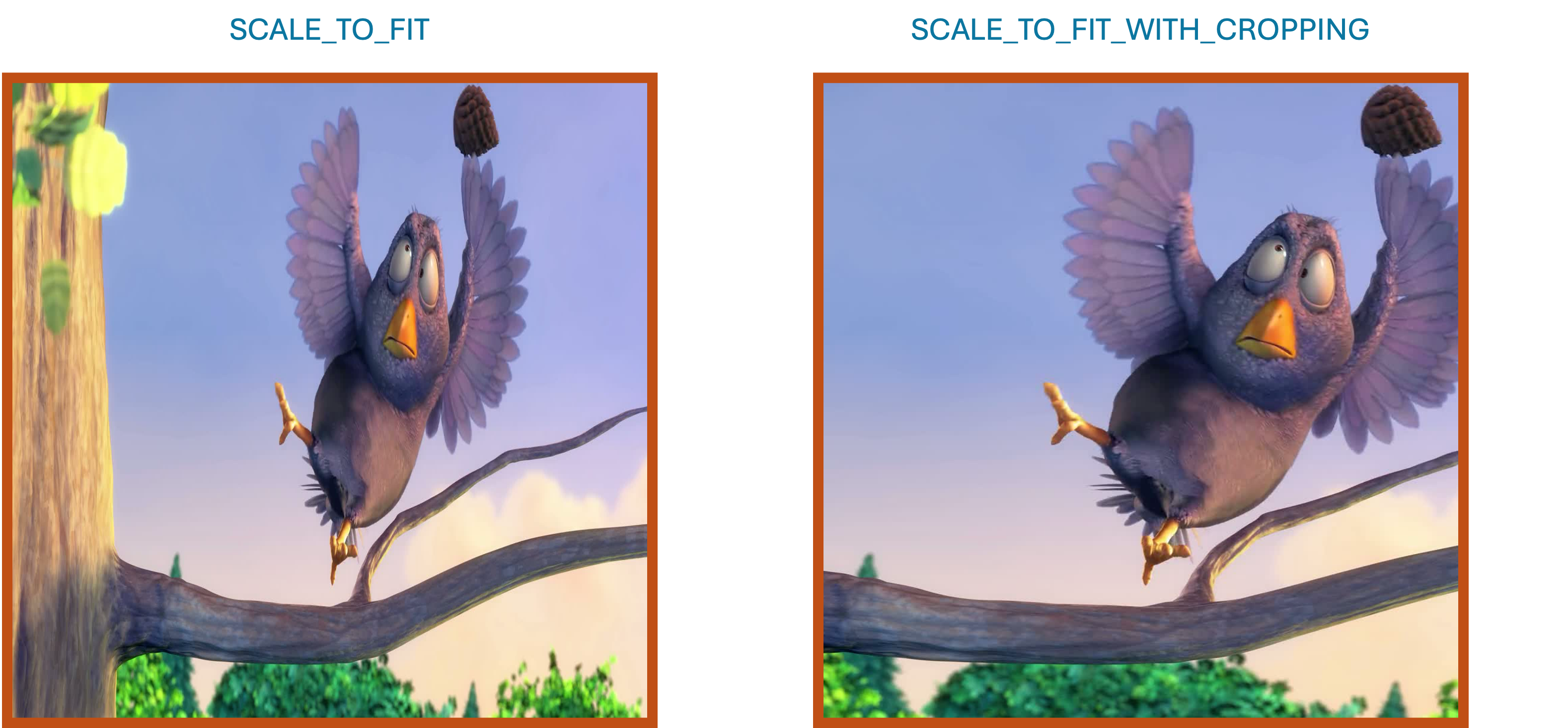
This mode performs independent horizontal and vertical scaling to ensure all video frame content fits within render window boundaries. Video buffer dimensions are stretched or compressed as needed to match the window’s aspect ratio. This guarantees no video content is lost or cropped, but may introduce visual distortion when aspect ratios don’t match.
Characteristics:
- Preserves all video content
- May cause aspect ratio distortion
- Can result in stretched or compressed appearance
- Suitable for contents with non-square pixel aspect ratios
Scale-to-Fit-with-Cropping Mode (Aspect-Preserving Fill)
This mode applies uniform scaling to both dimensions, maintaining the video buffer’s original aspect ratio while maximizing render window utilization. The buffer is scaled so the smaller dimension fits the window exactly, while the larger dimension may extend beyond window boundaries and gets cropped. This ensures optimal visual quality without aspect ratio distortion, but may lose some video content.
Characteristics:
- Maintains original aspect ratio
- Maximizes screen area utilization
- May crop content along the oversized dimension
- Eliminates letterboxing/pillarboxing
- Only suitable for pixel aspect ratio 1:1
Important Caveat:
The applied scaling mode may be reset when video output buffers change, so applications should call setVideoScalingMode() every time the onOutputFormatChange event is triggered.
Visual Comparison
The following figure illustrates the visual effects of both scaling modes when rendering a 1920×1080 video in a 1080×1080 render window:
Render Window Management
Surface Layout Considerations
The render window refers to the video output target, typically a Surface. The surface’s layout and size define the render window’s position and boundaries. To maintain video frame integrity and avoid visual distortion, media player applications should calculate and apply appropriate parameters through SurfaceView APIs. In practice, applications should ensure the output surface maintains the same aspect ratio as the current video and adjust surface dimensions when video properties change.
ExoPlayer Implementation Example
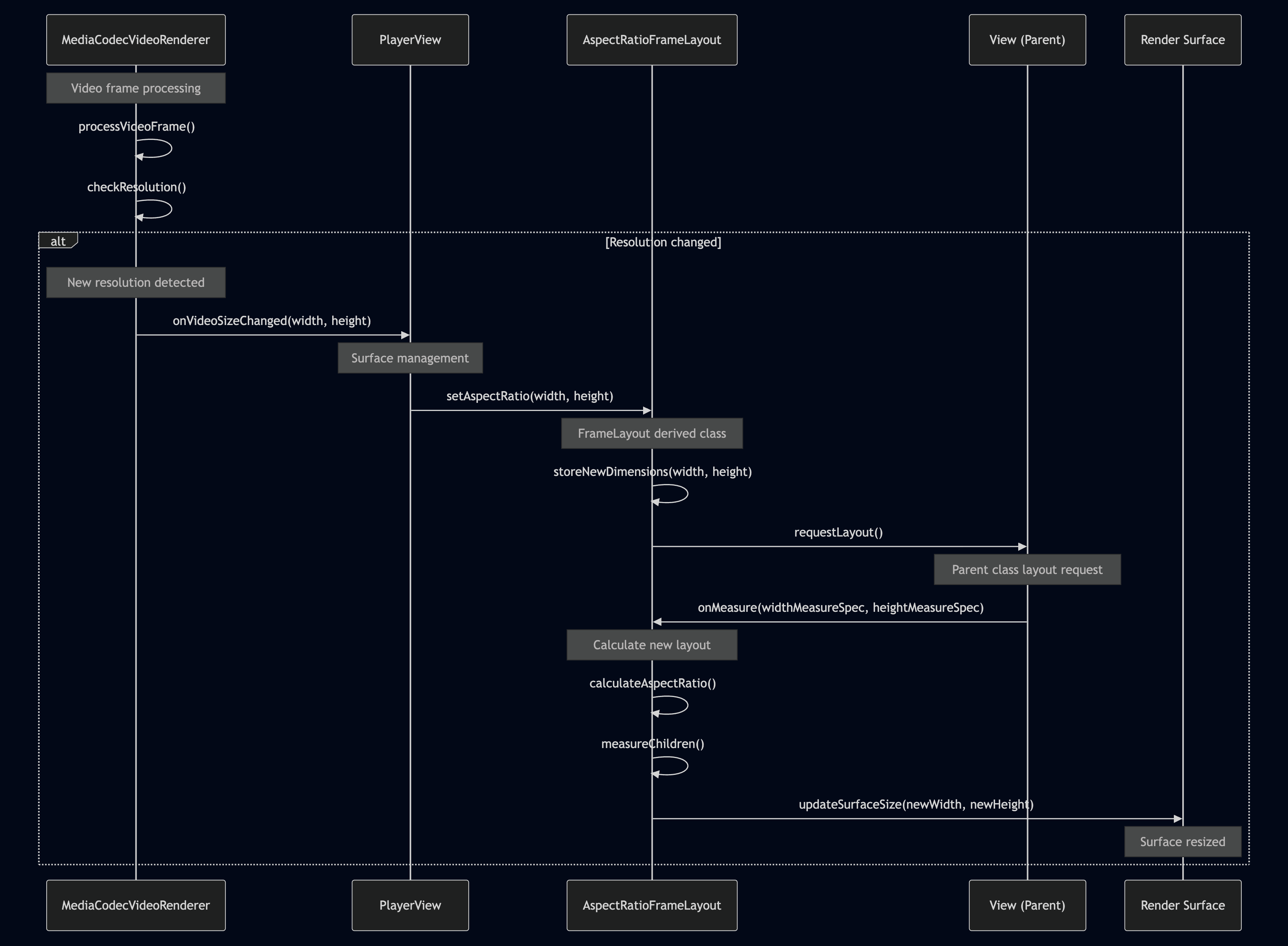
The ExoPlayer project demonstrates sophisticated surface layout management through the following flow:
Resolution Detection: The
MediaCodecVideoRendererclass monitors every video buffer for resolution changes and fires callbacks toPlayerViewwhen changes occur.Layout Management:
PlayerViewuses anAspectRatioFrameLayoutmember specifically designed to handle video surface layout changes.Layout Request:
AspectRatioFrameLayoutcallsrequestLayout()to notify the parentViewthat UI rearrangement is needed.Measurement Calculation: The
Viewclass callsonMeasure(), implemented byAspectRatioFrameLayout, which calculates new surface dimensions based on the updated video size.
References
[0] MediaFormat.KEY_CROP_BOTTOM
[1] CCodecConfig.cpp
[2] FFmpeg H.264 Metadata Filter
[3] MediaCodec.setVideoScalingMode()